
Blocks the apps you choose.So your child cannot open them.
Your child uses your phone. There is no child account to manage.
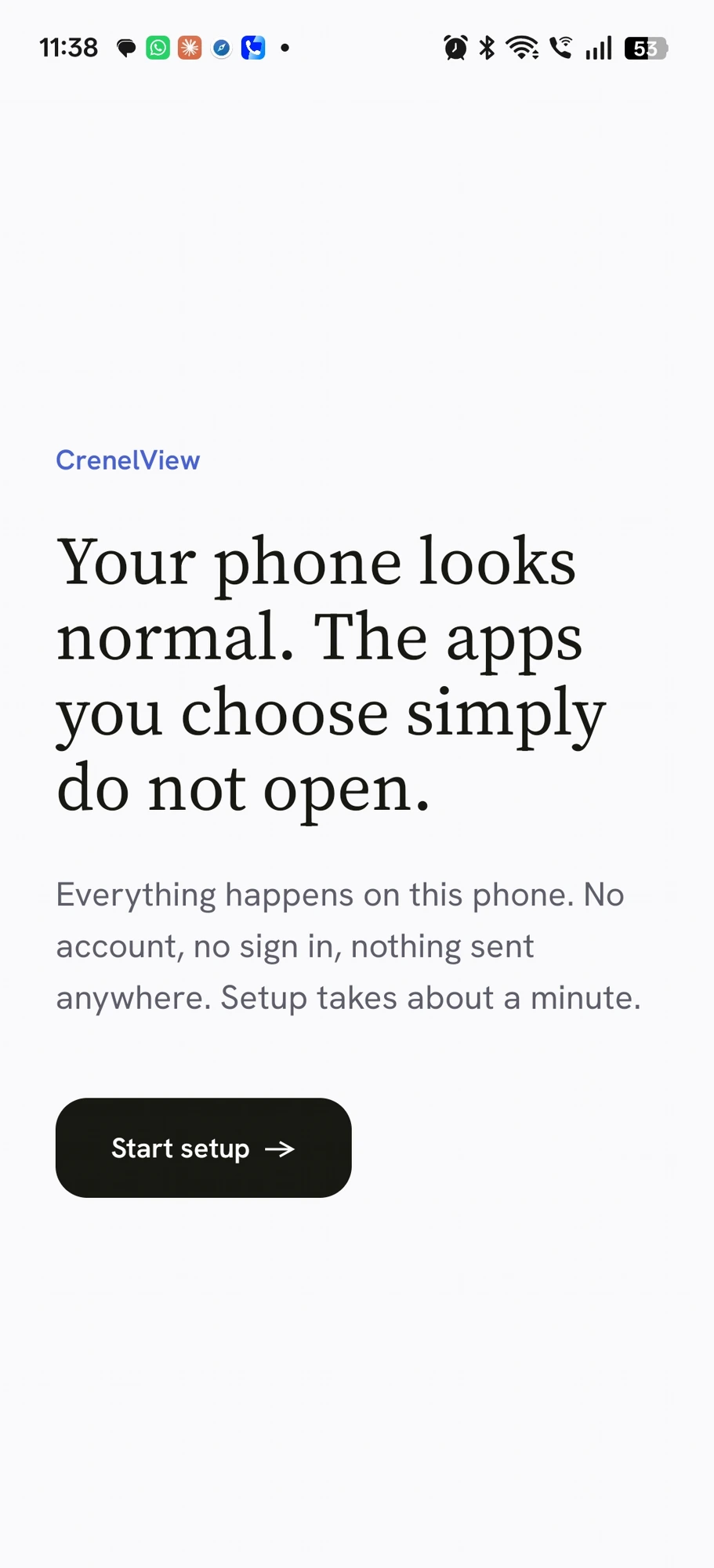
Most parental control apps expect a phone that belongs to your child, with its own account. If your child does not have a phone of their own and simply uses yours, that setup does not apply. CrenelView works directly on your phone instead. Tick an app, and it closes itself and returns to the home screen whenever it is opened while blocked.
How CrenelView works.
Eight steps, start to finish. Every step happens on your own phone. Nothing leaves it.
Install CrenelView from the Google Play Store.
One app, on your own phone. No child device and no child account are needed.
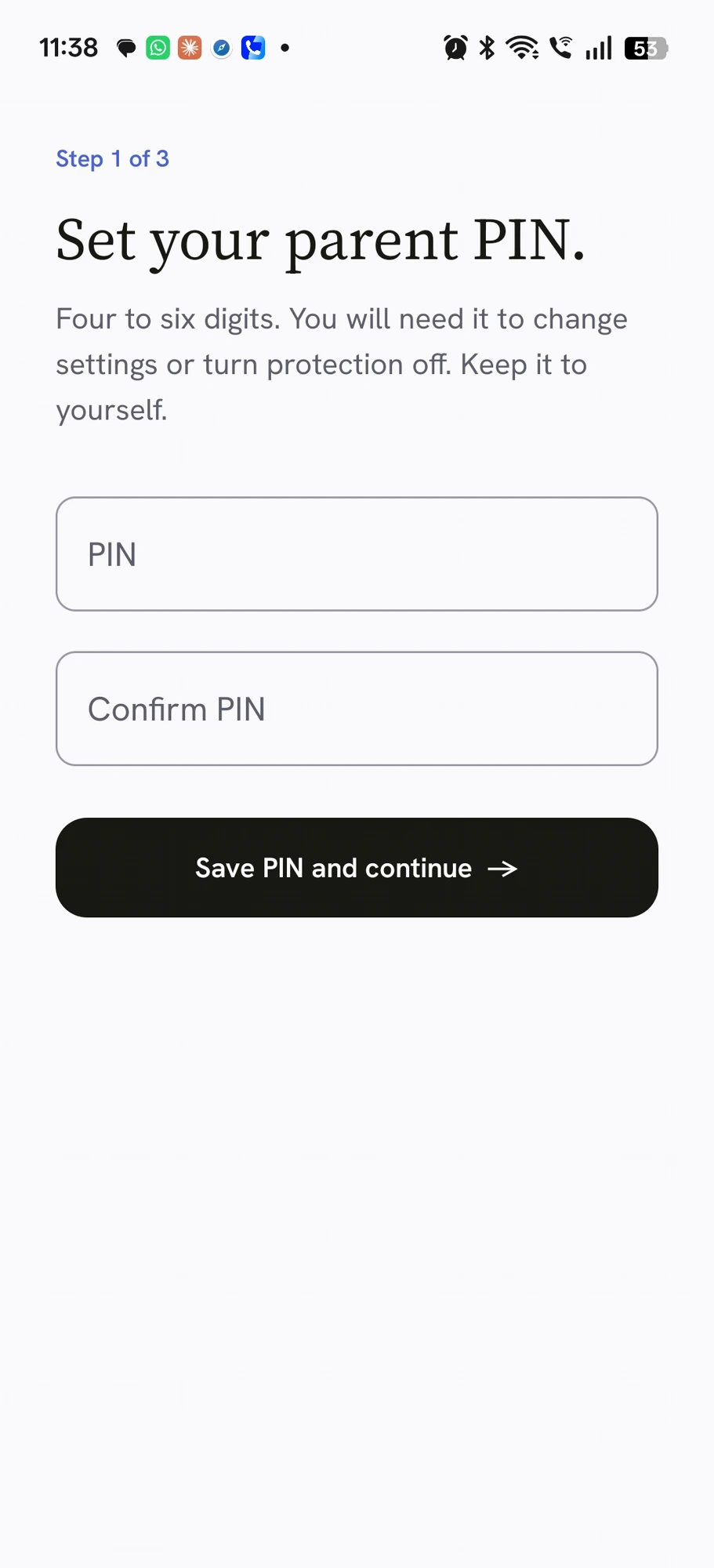
Open the app and set your parent PIN.
The PIN protects your settings, with a recovery code and a 24 hour reset if you lose it.
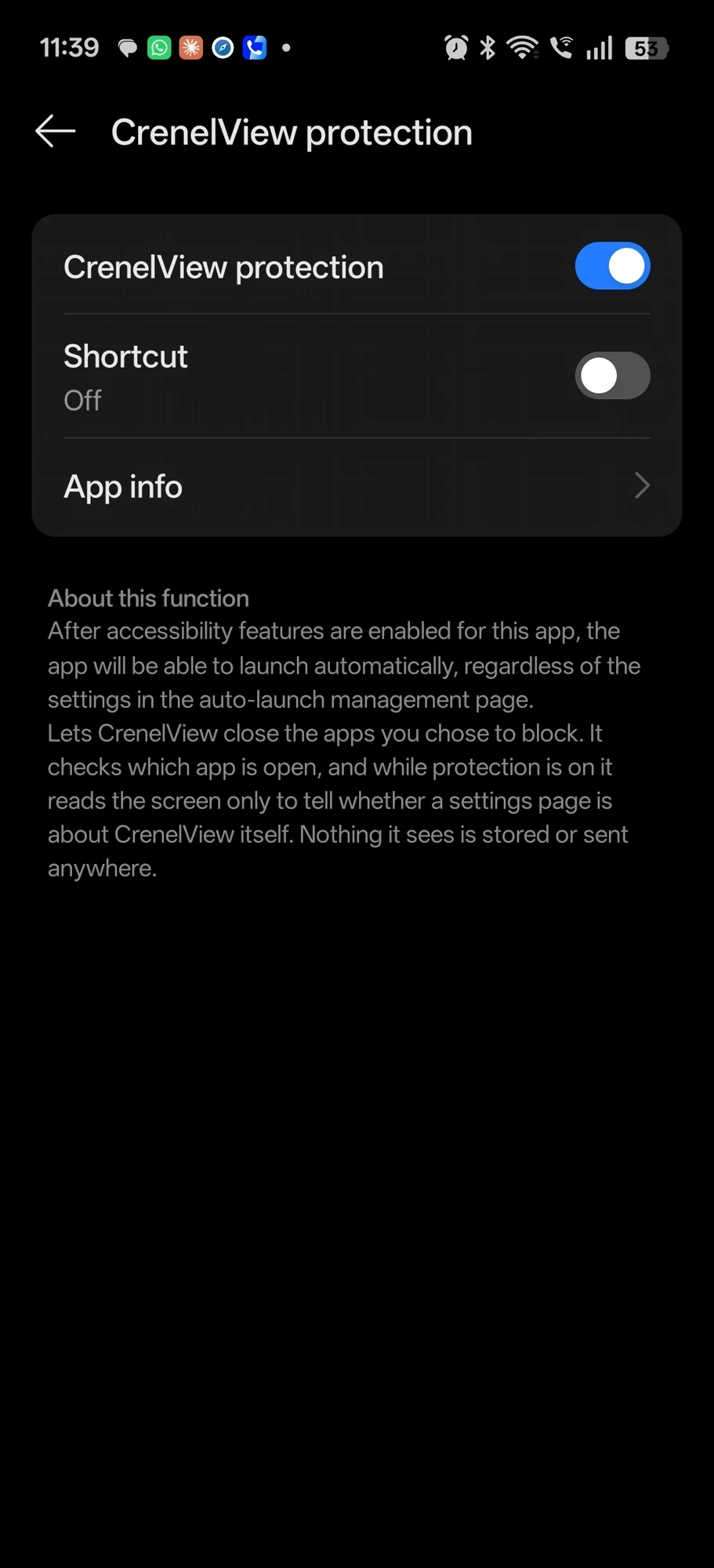
Turn on the accessibility service in Settings.
This is the one manual step, and the longest part of setup. CrenelView takes you to your phone's Settings, you switch its accessibility service on by hand, then come back to the app. It is required for blocking to work at all.
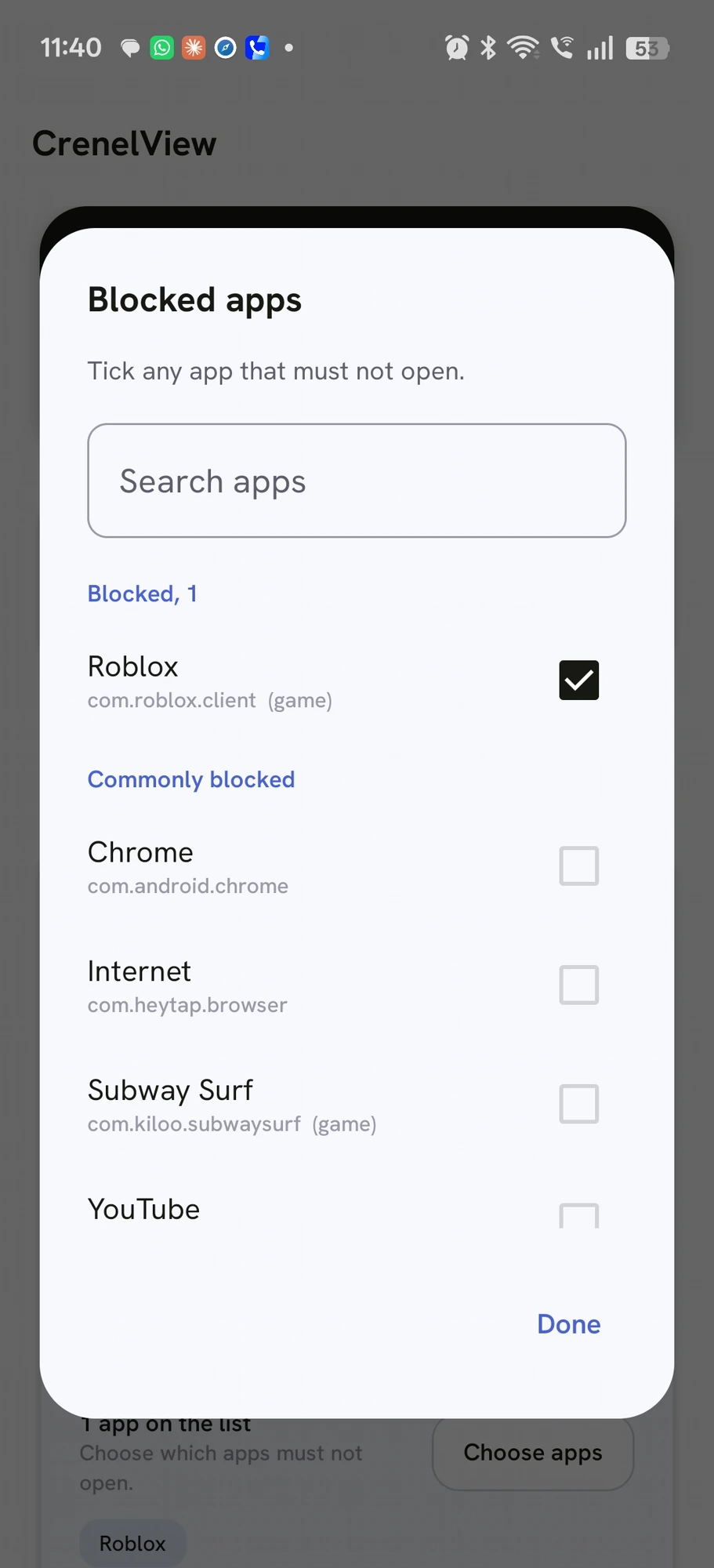
Tick the apps that must not open.
Pick from the apps already installed on your phone. That is the whole setup from here.
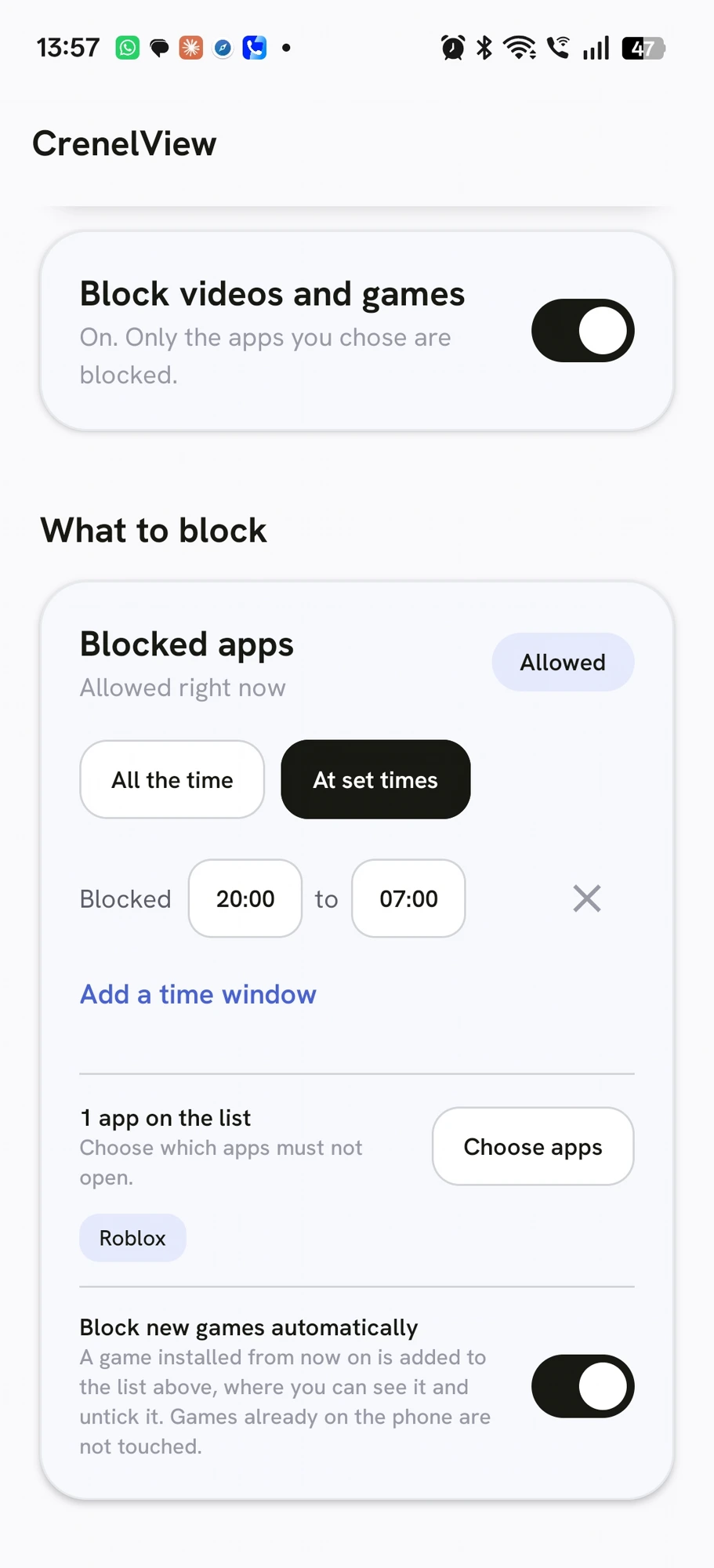
Choose one mode for your whole list: always, or only certain hours.
This is a single setting for the entire block list, not per app. Either every app on it stays blocked all the time, or every app on it is blocked only during hours you choose, for example 20:00 to 07:00.
Hand the phone over when needed.
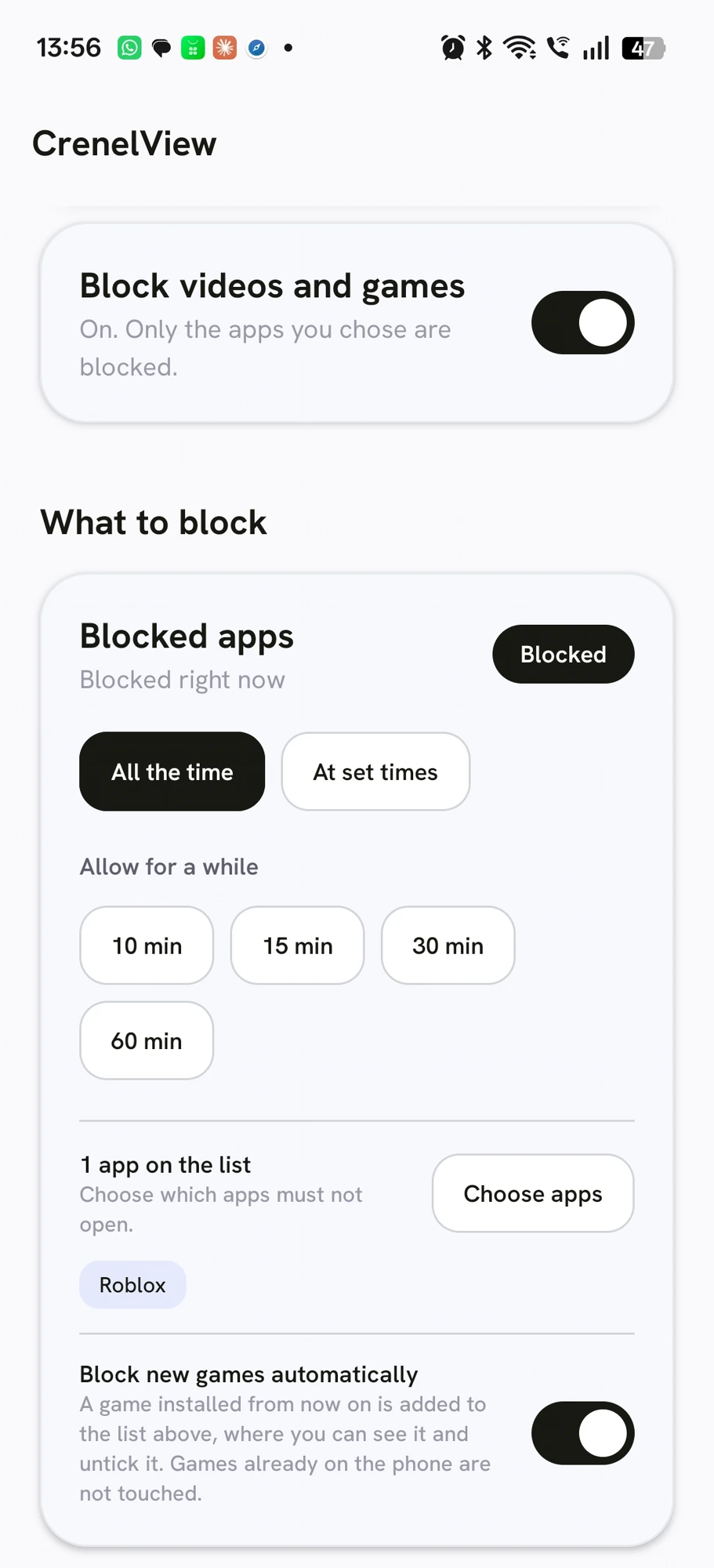
Tap 10, 15, 30 or 60 minutes to unblock your whole list for exactly that long. Everything on it opens again until the timer runs out, then it all blocks itself again on its own.
New games join the list on their own.
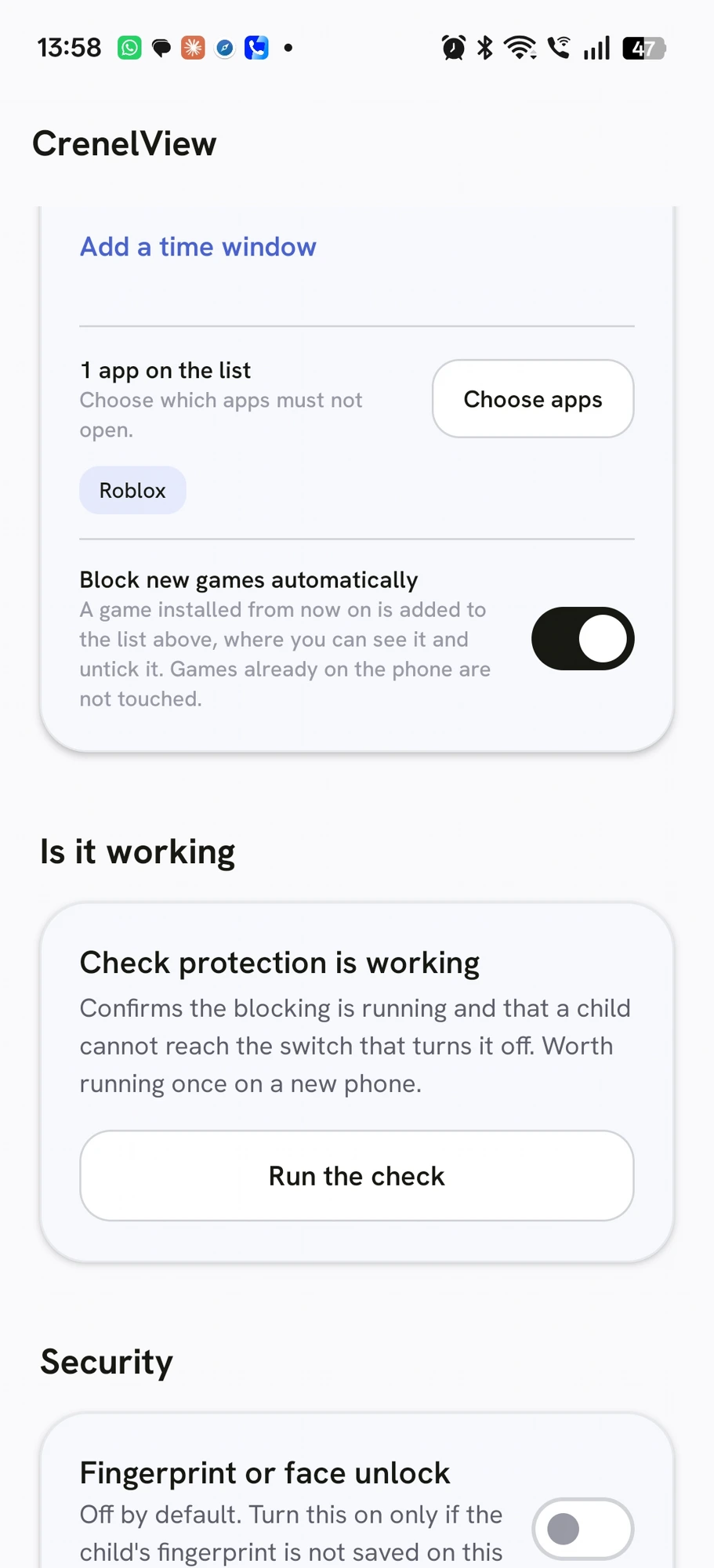
Any app your phone's own system categorizes as a game is added to your block list automatically when it is installed later. This applies to games only, decided by that category, not to other kinds of apps.
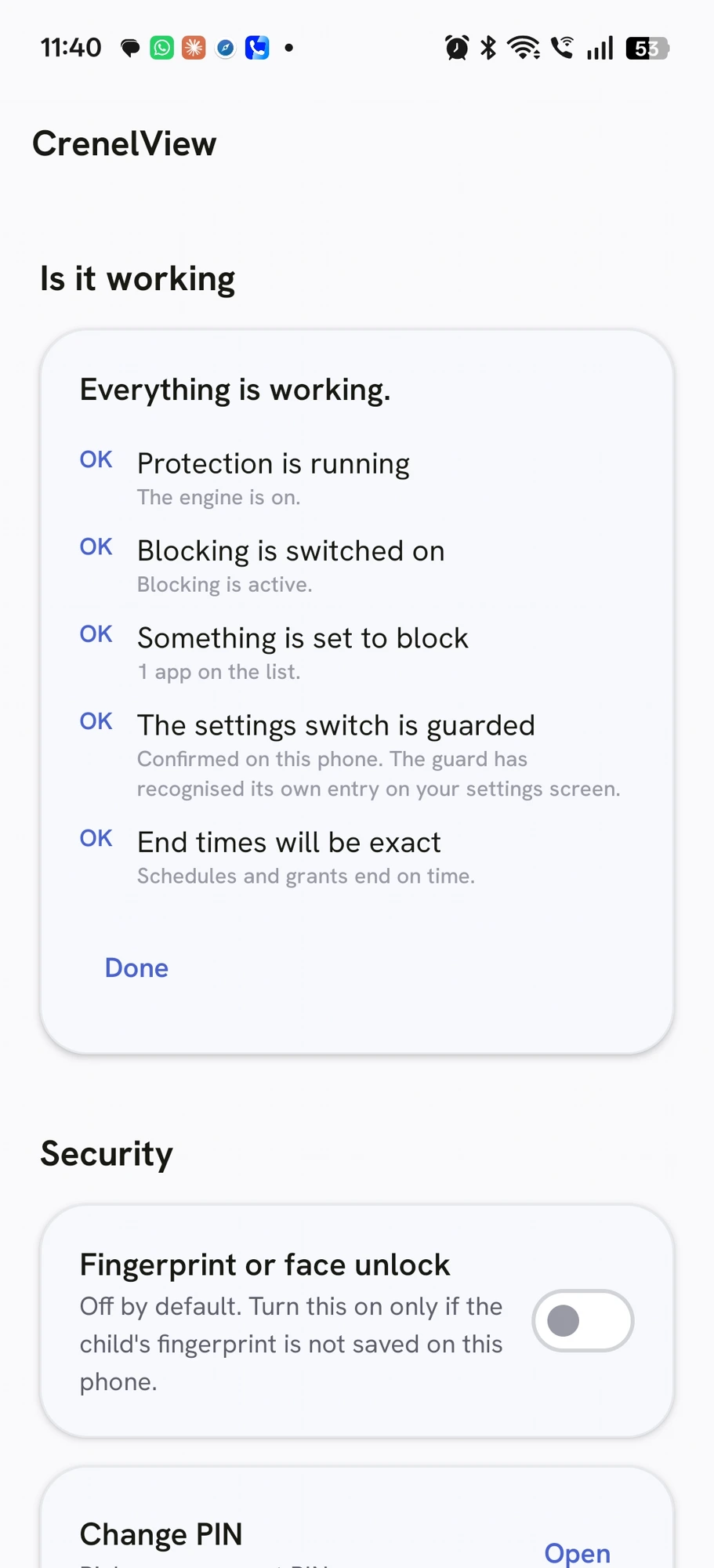
Run a self check whenever you want.
It tells you whether protection is actually active on your particular phone, right now.
Set it up once, then hand the phone over.
Nothing else to manage, and nothing to hand over but the phone.

From the blog.
Plain, practical writing on shared-phone parenting.