

9 October 2026 - 5 min read
How to Block Distracting Apps During Homework Hours and Keep Study Apps Open
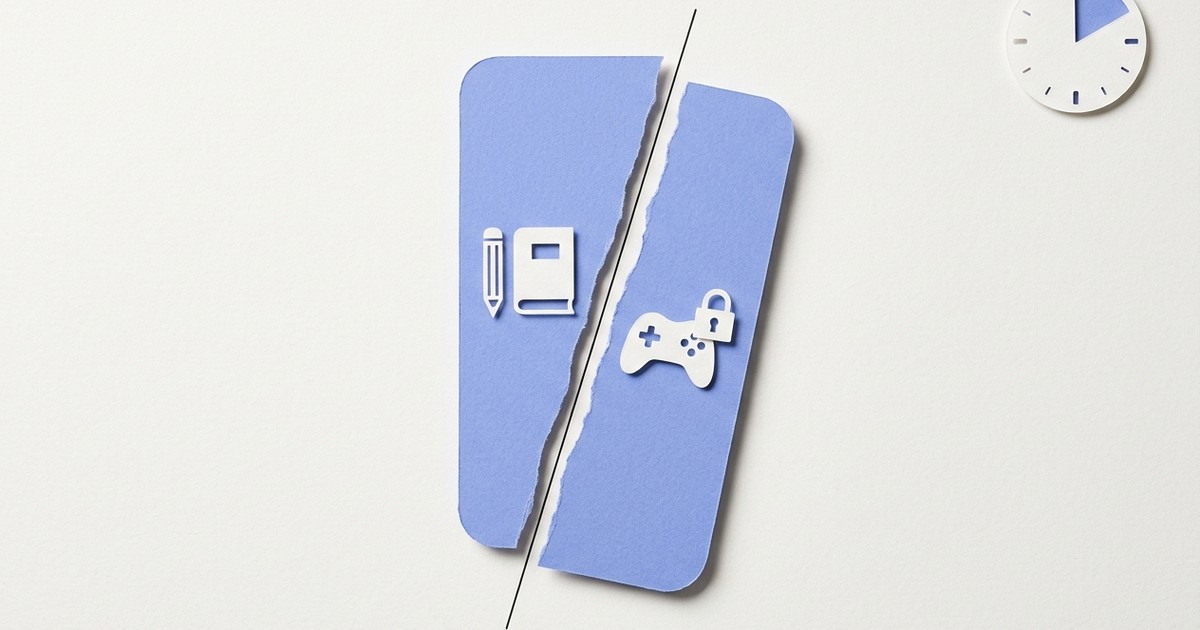
Your child needs your phone for a video lesson, and ten minutes later is watching something else. The fix is to close the distracting apps during homework hours and leave the study apps alone. With CrenelView you do that by choosing which apps go on the block list. The study apps stay off it.
Can you keep study apps open and block the rest during homework
You can keep study apps open and block the distracting ones, which is a slightly different thing. CrenelView blocks the apps you tick. It does not have a mode that allows only a short list and closes everything else. So the plan is simple: tick the games, videos and other apps that pull your child away, and do not tick the apps your child needs for study. When a ticked app opens during blocked hours, it closes at once and the phone returns to the home screen.
Which apps should go on the block list
The ones your child reaches for instead of working. Start with games and video apps, then add social apps, and think about the rest case by case. Newly installed apps join the list automatically only if the phone's own system files them as games, so check the list now and then for other new apps. Two choices need thought. If the lessons are on YouTube, see the question on blocked lessons below. If your child's school class uses a WhatsApp group, our article on blocking WhatsApp with school groups helps you decide.
How do you set homework hours
Choose the setting that blocks during hours you set, and enter the homework window. For example, you might block from 17:00 to 20:00, so the games and videos are closed while your child studies and open again afterwards. This is a single setting for the whole block list. Either every ticked app is blocked all the time, or every ticked app is blocked only during your hours. You cannot have some apps blocked always and others only in homework hours. Your settings are protected by your PIN, so your child cannot change the hours. If you also use the list at night, our bedtime article covers that.
Pick the apps that distract, set the homework hours, and leave the study apps open.
Get it on Google Play->What if the lesson is on an app you have blocked
Use "Allow for a while." It opens the blocked list for 10, 15, 30 or 60 minutes, then blocks again by itself. Because the setting covers the whole list, every ticked app opens during that time, not just the one your child needs. So stay nearby, pick the shortest time that fits the lesson, and let the blocking return on its own. If the same app is used for study every day, you may decide to leave it off the list for the school term and rely on a daily routine for that one.
How long should a child spend on a screen for study
India's Ministry of Education gave limits for online classes in its PRAGYATA guidelines, released in July 2020. For pre-primary children it said not more than 30 minutes a day. For classes 1 to 8 it said not more than two sessions of 30 to 45 minutes each, and for classes 9 to 12 not more than four sessions of 30 to 45 minutes each, on days when States and Union Territories hold online classes. The guidelines also stress balancing online and offline activities and avoiding long stretches on a device. Those figures were written for online classes during the pandemic, not for homework on a shared phone, so use them as a rough guide to balance, not as a rule for your child's evening.
How do you know the blocking is working
Run the app's built-in check on your phone. Some phones close background apps to save battery, which can silently switch blocking off, and the check tells you whether blocking is active on your specific phone. Then test it once yourself by opening a ticked app during homework hours. If it closes, the plan works. Tell your child the hours and the reason, as a rule they can predict is easier to accept than a surprise.
Homework hours work best when the rule is the same every day. Pick the apps once, set the hours once, and let the phone do the reminding.
Set homework hours once, and your phone closes the distractions for you.
Get it on Google Play->